> ## Documentation Index
> Fetch the complete documentation index at: https://dripart-chore-sync-comfy-api-v2-spec-b886298.mintlify.site/llms.txt
> Use this file to discover all available pages before exploring further.
# Windows — Comfy Desktop
> Install and uninstall Comfy Desktop on Windows
**Comfy Desktop** is a multi-installation manager that lets you run multiple ComfyUI instances from a single launcher. This guide covers how to install and uninstall Comfy Desktop on Windows.
## System Requirements
* **OS:** Windows 10 or later
* **Architecture:** x64 or ARM64
* **GPU:** Dedicated GPU (NVIDIA / AMD) recommended for good performance, but not required
* **Disk Space:** At least 4.85 GB recommended per installation
Download the latest installer for Windows. The page will automatically detect your platform.
## Installation
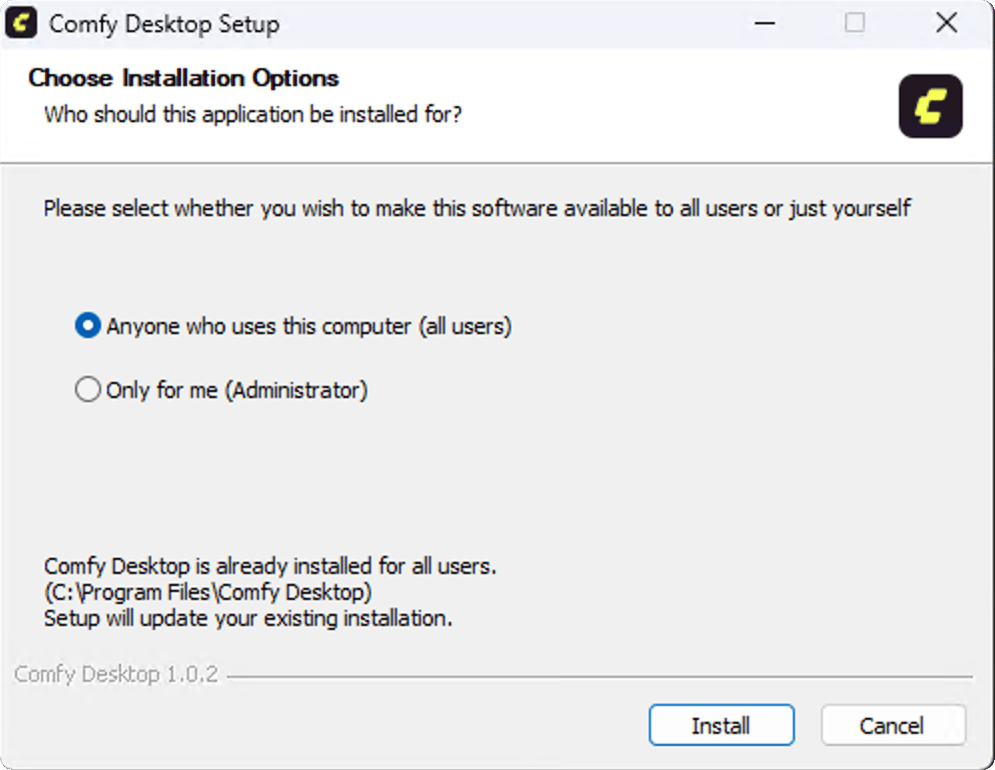
Run the downloaded `.exe` installer (NSIS installer) and follow the prompts. After installation, launch Comfy Desktop from the Start Menu or desktop shortcut.
 When you first open the app, you'll see the **Welcome** screen where you can create your first installation.
**Already using Legacy Desktop?** Comfy Desktop can automatically detect and migrate your existing installation. Your custom nodes, workflows, models, and settings are carried over — nothing is lost. The legacy installation is kept untouched as a backup.
Learn more in the [Migrate from Legacy](/installation/desktop/usage/migrate) guide.
Once installed, learn how to create instances, manage installations, and configure settings.
## Updating Comfy Desktop
Comfy Desktop automatically checks for updates and lets you manage them in two ways.
## Quick Update
When an update is available, a **Desktop Update Ready** button appears at the top of the window:
When you first open the app, you'll see the **Welcome** screen where you can create your first installation.
**Already using Legacy Desktop?** Comfy Desktop can automatically detect and migrate your existing installation. Your custom nodes, workflows, models, and settings are carried over — nothing is lost. The legacy installation is kept untouched as a backup.
Learn more in the [Migrate from Legacy](/installation/desktop/usage/migrate) guide.
Once installed, learn how to create instances, manage installations, and configure settings.
## Updating Comfy Desktop
Comfy Desktop automatically checks for updates and lets you manage them in two ways.
## Quick Update
When an update is available, a **Desktop Update Ready** button appears at the top of the window:
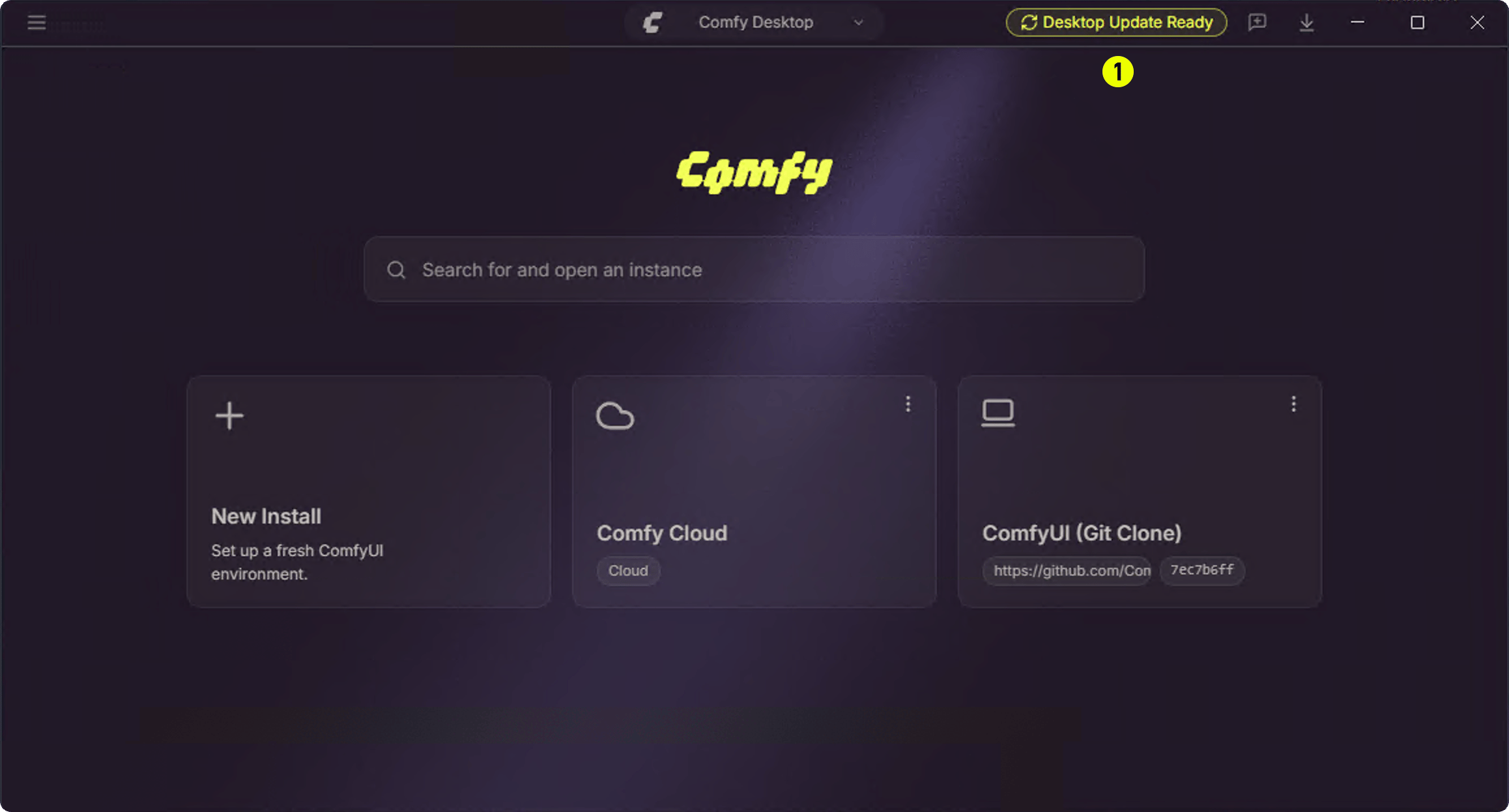 Just click the ① Desktop Update Ready button and Comfy Desktop will restart and install the update automatically.
## Manual Update via Settings
You can also check for and manage updates from the Settings panel:
Just click the ① Desktop Update Ready button and Comfy Desktop will restart and install the update automatically.
## Manual Update via Settings
You can also check for and manage updates from the Settings panel:
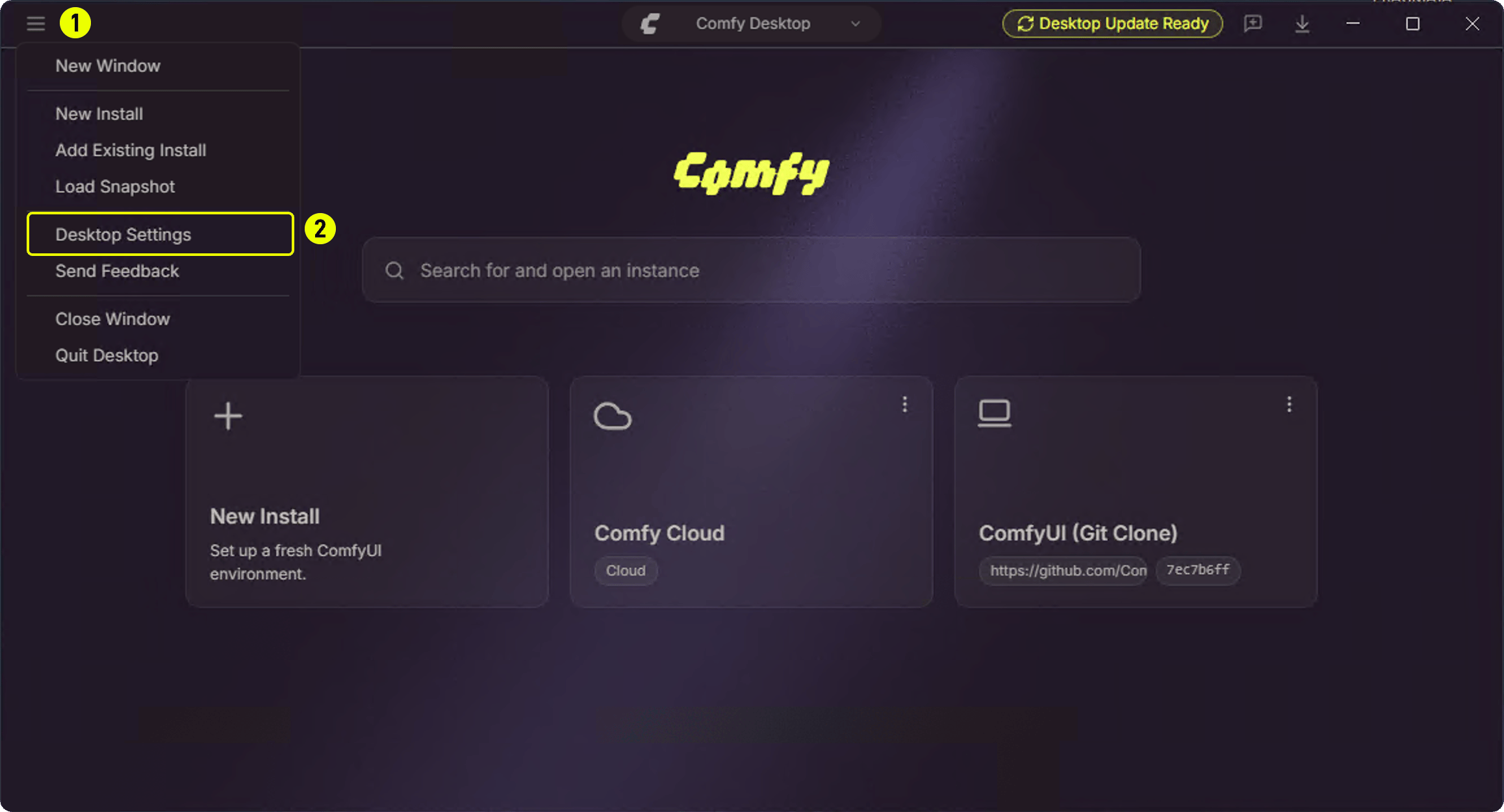 1. **①** Click the hamburger menu (top-left)
2. **②** Select **Desktop Settings**
1. **①** Click the hamburger menu (top-left)
2. **②** Select **Desktop Settings**
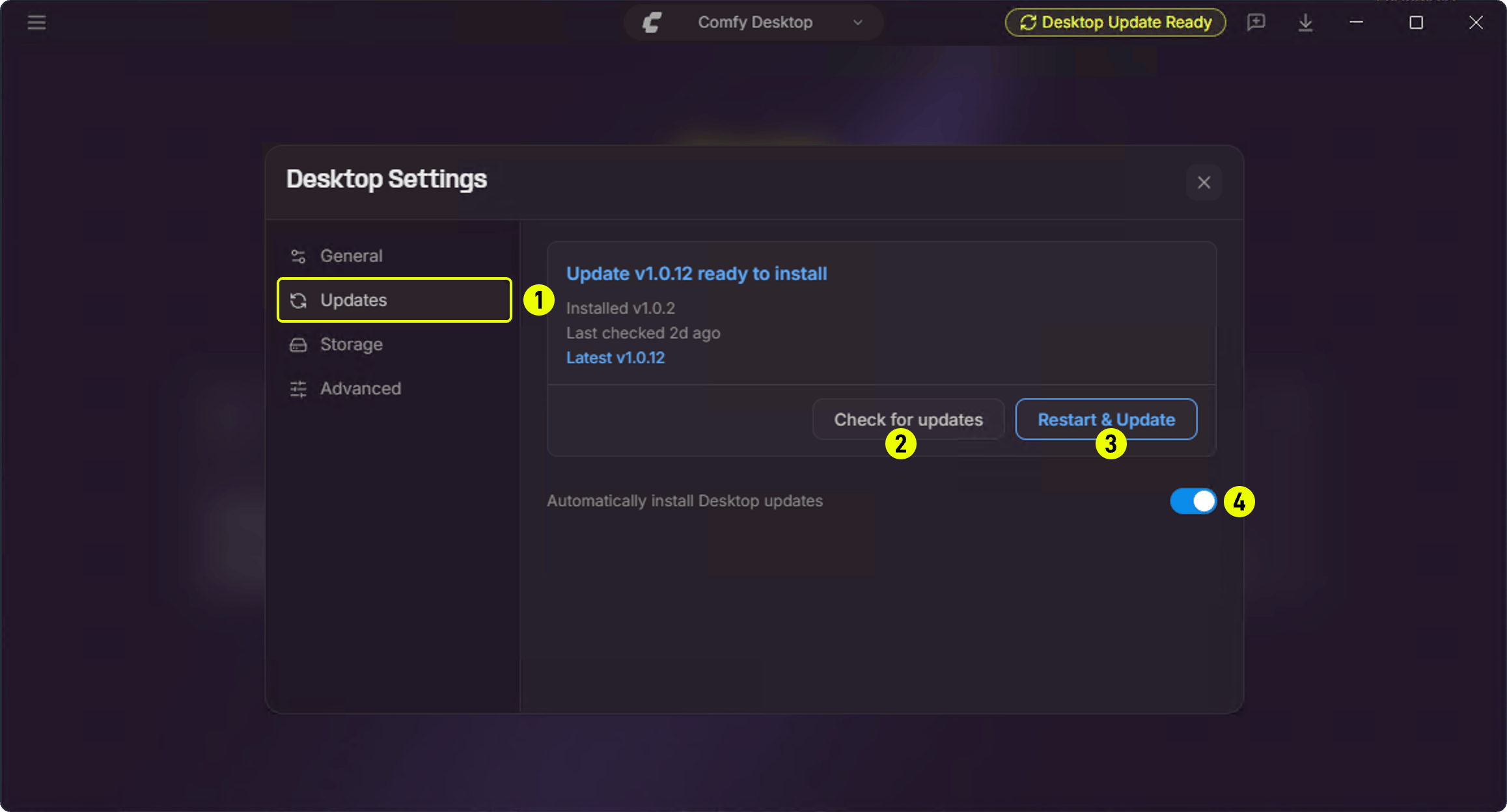 In the **Updates** panel:
1. **① Updates** — Click the sidebar Updates tab
2. **② Check for updates** — Manually check for available updates
3. **③ Restart & Update** — Appears when a new version is available; click to restart and update
4. **④ Automatically install Desktop updates** — Toggle this on/off to control automatic updates
## Uninstalling
### Remove Comfy Desktop
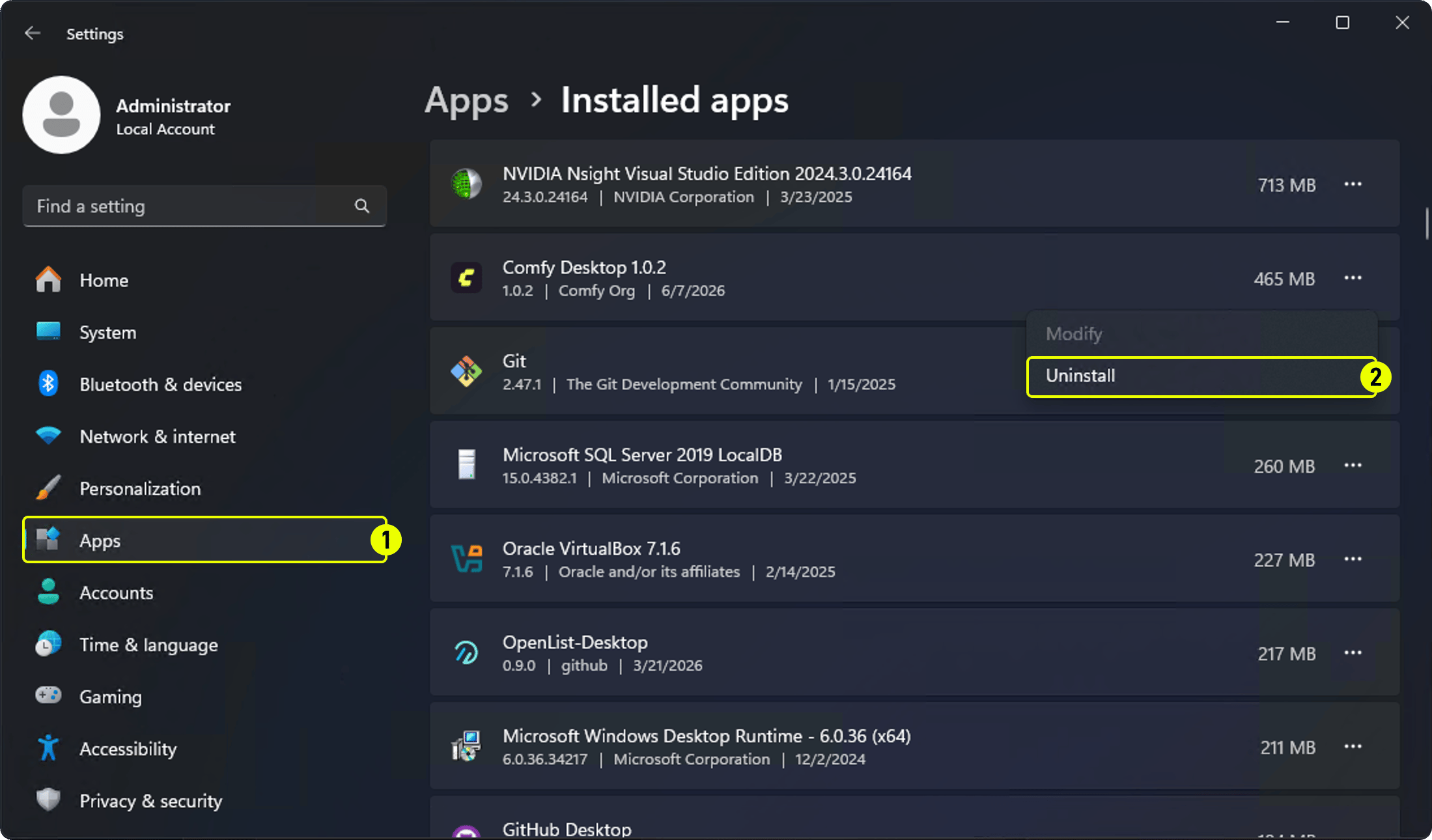
1. Go to **Settings → Apps → Installed apps**
2. Find **Comfy Desktop** and click **Uninstall**
In the **Updates** panel:
1. **① Updates** — Click the sidebar Updates tab
2. **② Check for updates** — Manually check for available updates
3. **③ Restart & Update** — Appears when a new version is available; click to restart and update
4. **④ Automatically install Desktop updates** — Toggle this on/off to control automatic updates
## Uninstalling
### Remove Comfy Desktop
1. Go to **Settings → Apps → Installed apps**
2. Find **Comfy Desktop** and click **Uninstall**
 ### What Uninstalling the App Does NOT Remove
Uninstalling Comfy Desktop only removes the launcher app itself. The following data is **not** removed and must be deleted manually if you want a complete cleanup:
| Data | Default Location | Description |
| ----------------------- | ----------------------------------------------- | ---------------------------------------------------------------------------------------------------------------------------------------------------------------------------------------------- |
| Installations | `%LOCALAPPDATA%\Comfy-Desktop\ComfyUI-Installs` | Each ComfyUI installation you created (can also be deleted from within the app). Custom install paths are also not removed. Older installs may still live in `%USERPROFILE%\ComfyUI-Installs`. |
| Shared models & outputs | `%LOCALAPPDATA%\Comfy-Desktop\ComfyUI-Shared` | Shared model library, input/output directories. Older installs may still use `%USERPROFILE%\ComfyUI-Shared`. |
| App settings & registry | `%APPDATA%\Comfy Desktop` | Settings and installation records |
| Logs | `%APPDATA%\Comfy Desktop\logs` | Desktop app logs (`app.log`) |
The directories listed above contain your **personal ComfyUI data** (models, outputs, settings, and installations). They are **not** Comfy Desktop application files. Deleting them will permanently remove your data.
To fully remove everything:
1. **Delete the app data folder**: `%APPDATA%\Comfy Desktop`
2. **Delete individual installations** from within the app, or manually delete `%LOCALAPPDATA%\Comfy-Desktop\ComfyUI-Installs` (or `%USERPROFILE%\ComfyUI-Installs` if that is where they were created). Also delete any custom installation directories you configured
3. **Delete the shared model library** at `%LOCALAPPDATA%\Comfy-Desktop\ComfyUI-Shared` (or `%USERPROFILE%\ComfyUI-Shared`) only if you no longer need these files
### What Uninstalling the App Does NOT Remove
Uninstalling Comfy Desktop only removes the launcher app itself. The following data is **not** removed and must be deleted manually if you want a complete cleanup:
| Data | Default Location | Description |
| ----------------------- | ----------------------------------------------- | ---------------------------------------------------------------------------------------------------------------------------------------------------------------------------------------------- |
| Installations | `%LOCALAPPDATA%\Comfy-Desktop\ComfyUI-Installs` | Each ComfyUI installation you created (can also be deleted from within the app). Custom install paths are also not removed. Older installs may still live in `%USERPROFILE%\ComfyUI-Installs`. |
| Shared models & outputs | `%LOCALAPPDATA%\Comfy-Desktop\ComfyUI-Shared` | Shared model library, input/output directories. Older installs may still use `%USERPROFILE%\ComfyUI-Shared`. |
| App settings & registry | `%APPDATA%\Comfy Desktop` | Settings and installation records |
| Logs | `%APPDATA%\Comfy Desktop\logs` | Desktop app logs (`app.log`) |
The directories listed above contain your **personal ComfyUI data** (models, outputs, settings, and installations). They are **not** Comfy Desktop application files. Deleting them will permanently remove your data.
To fully remove everything:
1. **Delete the app data folder**: `%APPDATA%\Comfy Desktop`
2. **Delete individual installations** from within the app, or manually delete `%LOCALAPPDATA%\Comfy-Desktop\ComfyUI-Installs` (or `%USERPROFILE%\ComfyUI-Installs` if that is where they were created). Also delete any custom installation directories you configured
3. **Delete the shared model library** at `%LOCALAPPDATA%\Comfy-Desktop\ComfyUI-Shared` (or `%USERPROFILE%\ComfyUI-Shared`) only if you no longer need these files