> ## Documentation Index
> Fetch the complete documentation index at: https://dripart-chore-sync-comfy-api-v2-spec-b886298.mintlify.site/llms.txt
> Use this file to discover all available pages before exploring further.
# Wan2.2 Animate ComfyUI native workflow
> Unified character animation and replacement framework with precise motion and expression replication.
Wan-Animate is a unified framework for character animation and replacement developed by the WAN Team.
The model can animate any character based on a performer’s video, precisely replicating the performer’s facial expressions and movements to generate highly realistic character videos.
It can also replace characters in a video with animated characters, preserving their expressions and movements while replicating the original lighting and color tone for seamless environmental integration.
## Model Highlights
* Dual Mode Functionality: A single architecture supports both animation and replacement functions, enabling easy operation switching.
* Advanced Body Motion Control: Uses spatially-aligned skeleton signals for accurate body movement replication
* Precise Motion and Expression: Accurately reproduces the movements and facial expressions from the reference video.
* Natural Environment Integration: Seamlessly blends the replaced character with the original video environment.
* Smooth Long Video Generation: Iterative generation ensures consistent motion and visual flow in extended videos
## ComfyOrg Wan2.2 Animate stream replay
Make sure your ComfyUI is updated.
* [Download ComfyUI](https://www.comfy.org/download)
* [Update Guide](/installation/update_comfyui)
Workflows in this guide can be found in the [Workflow Templates](/interface/features/template).
If you can't find them in the template, your ComfyUI may be outdated.
If nodes are missing when loading a workflow, possible reasons:
1. You are not using the latest ComfyUI version (Nightly version)
2. Some nodes failed to import at startup
* [Cloud](https://cloud.comfy.org) will update after ComfyUI stable release.
So, if you find any core node missing in this document, it might be because the new core nodes have not yet been released in the latest stable version. Please wait for the next stable release.
## About Wan2.2 Animate workflow
This workflow supports two modes: Mix (replace a character in a video with a character from a reference image) and Move (animate a character using motion from an input video).
Wan2.2 Animate, Character Animation and Replacement
Unified character animation and replacement framework with precise motion and expression replication.
Open in Comfy Cloud
Download JSON or search "Wan2.2 Animate" in Template Library
**Input materials**
Upload these files to the matching nodes:
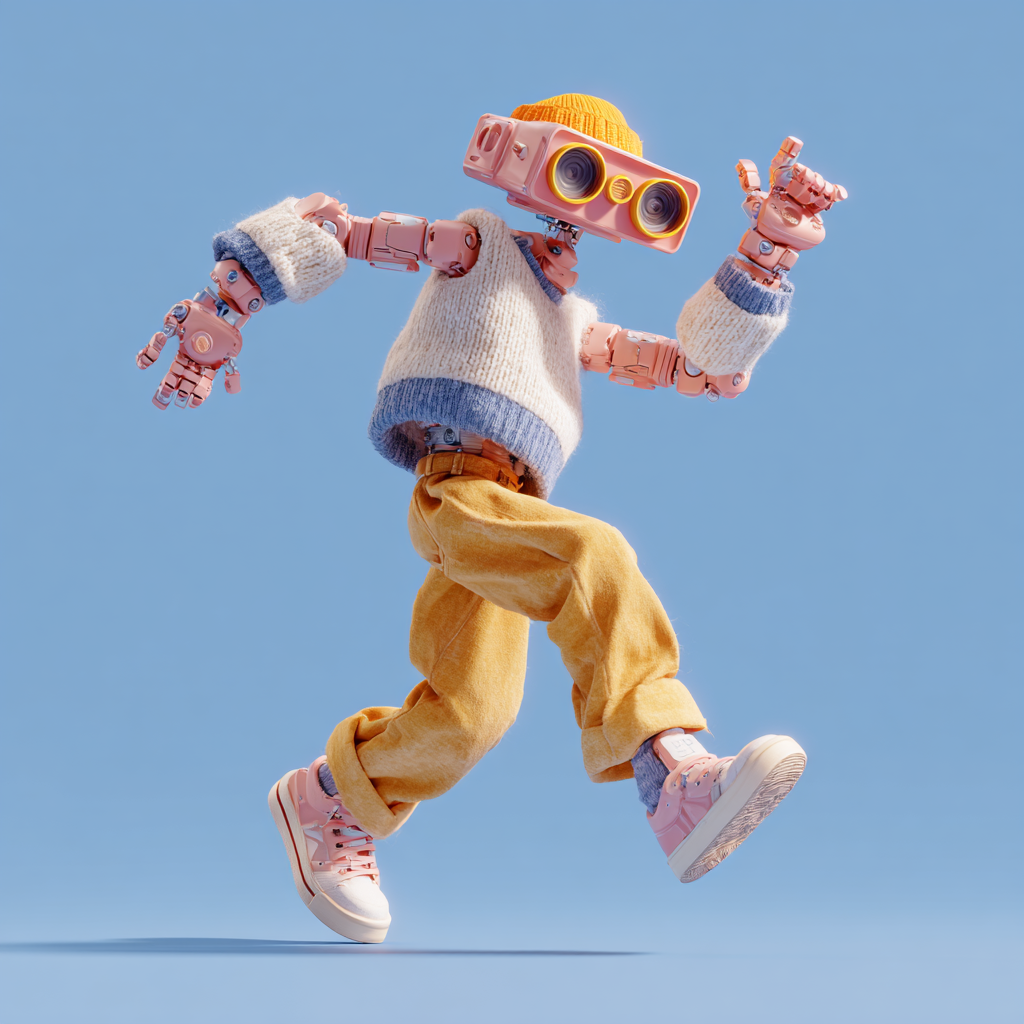
`LoadImage` node 10 · `video_wan2_2_14B_animate_reference_image.png`
`LoadVideo` node 145 · `video_wan2_2_14B_animate_original_video.mp4`
### 2. Model links
All models involved in this guide can be found [here](https://huggingface.co/Comfy-Org/Wan_2.2_ComfyUI_Repackaged/tree/main/split_files).
**Diffusion Models**
Wan2\_2-Animate-14B\_fp8\_e4m3fn\_scaled\_KJ.safetensors: Scaled FP8 version from Kijai's repo
wan2.2\_animate\_14B\_bf16.safetensors: Original bf16 model weight
**CLIP Vision**
clip\_vision\_h.safetensors: CLIP Vision encoder
**LoRAs**
lightx2v\_I2V\_14B\_480p\_cfg\_step\_distill\_rank64\_bf16.safetensors: 4-step acceleration LoRA
**VAE**
wan\_2.1\_vae.safetensors: Wan2.1 VAE for encoding and decoding
**Text Encoders**
umt5\_xxl\_fp8\_e4m3fn\_scaled.safetensors: Scaled FP8 text encoder
```
ComfyUI/
├───📂 models/
│ ├───📂 diffusion_models/
│ │ ├─── Wan2_2-Animate-14B_fp8_e4m3fn_scaled_KJ.safetensors
│ │ └─── wan2.2_animate_14B_bf16.safetensors
│ ├───📂 loras/
│ │ └─── lightx2v_I2V_14B_480p_cfg_step_distill_rank64_bf16.safetensors
│ ├───📂 text_encoders/
│ │ └─── umt5_xxl_fp8_e4m3fn_scaled.safetensors
│ ├───📂 clip_visions/
│ │ └─── clip_vision_h.safetensors
│ └───📂 vae/
│ └── wan_2.1_vae.safetensors
```
### 3. Install custom nodes
Download the following workflow file and drag it into ComfyUI to load the workflow, if you have [ComfyUI-Manager](https://github.com/Comfy-Org/ComfyUI-Manager) installed, you can just click the `Install missing nodes` button to install the missing nodes.
We need to install the following custom nodes:
* [ComfyUI-KJNodes](https://github.com/kijai/ComfyUI-KJNodes)
* [ComfyUI-comfyui\_controlnet\_aux](https://github.com/Fannovel16/comfyui_controlnet_aux)
If you don't know how to install custom nodes please refer to [How to install custom nodes](/installation/install_custom_node)
### 4. Workflow Instructions
The Wan2.2 animate has two modes: Mix and move
* Mix: use the reference image to replace the character in the video
* Move: Use the character movement from the input video to animate the character in the reference image (like Wan2.2 Fun Control)
#### 4.1 Mix mode
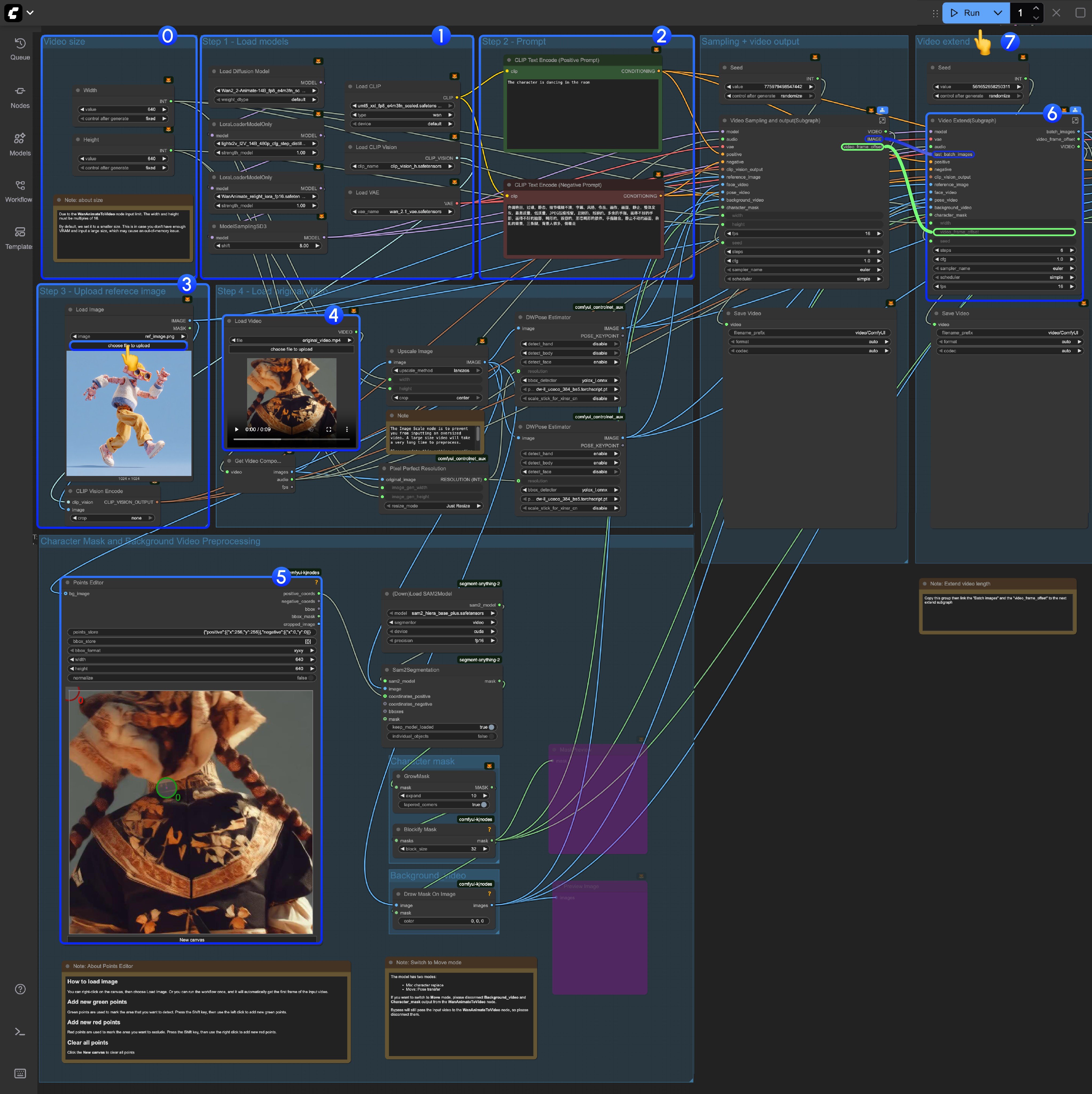
0. If you are running this workflow for the first time, please use a small size for video generation, in case you don't have enough VRAM to run the workflow, and due to the `WanAnimateToVideo` limited, the video width or height should be multiples of 16.
1. Make sure all the models are loaded correctly
2. Update the prompt if you want
3. Upload the reference image, the character is this image will be the target character
4. You can use the videos we provided as input videos for the first time, the **DWPose Estimator** node in [comfyui\_controlnet\_aux](https://github.com/Fannovel16/comfyui_controlnet_aux) will preprocess the input video to pose and face control videos
5. The `Points Editor` is from [KJNodes](https://github.com/kijai/ComfyUI-KJNodes/), by default this node will not load the first frame from the input video, you need to run the workflow once or manually upload the first frame
* Below the `Points Editor` node, we have added a note about how this node works, and how to edit it. Please refer to it
6. For the "Video Extend" group, it's in order to extend to the output video length
* Each `Video Extend` will extend another 77 frames(Around 4.8125 seconds)
* If your input video is less than 5s, you might not need it
* If you want to extend longer, you need to copy and paste multiple times, you need to link the `batch_images` from last Video Extend to next one, and also the `video_frame_offset` from last Video Extend to next one
7. Click the `Run` button or use the shortcut `Ctrl(cmd) + Enter` to execute video generation
#### 4.2 Move mode
We used [subgraph](/interface/features/subgraph) in the Wan2.2 animate workflow, here is how to switching to move mode:
If you want to switch to Move mode, you can disconnect `background_video` and `character_mask` inputs from the `Video Sampling and output(Subgraph)` node.
 0. If you are running this workflow for the first time, please use a small size for video generation, in case you don't have enough VRAM to run the workflow, and due to the `WanAnimateToVideo` limited, the video width or height should be multiples of 16.
1. Make sure all the models are loaded correctly
2. Update the prompt if you want
3. Upload the reference image, the character is this image will be the target character
4. You can use the videos we provided as input videos for the first time, the **DWPose Estimator** node in [comfyui\_controlnet\_aux](https://github.com/Fannovel16/comfyui_controlnet_aux) will preprocess the input video to pose and face control videos
5. The `Points Editor` is from [KJNodes](https://github.com/kijai/ComfyUI-KJNodes/), by default this node will not load the first frame from the input video, you need to run the workflow once or manually upload the first frame
* Below the `Points Editor` node, we have added a note about how this node works, and how to edit it. Please refer to it
6. For the "Video Extend" group, it's in order to extend to the output video length
* Each `Video Extend` will extend another 77 frames(Around 4.8125 seconds)
* If your input video is less than 5s, you might not need it
* If you want to extend longer, you need to copy and paste multiple times, you need to link the `batch_images` from last Video Extend to next one, and also the `video_frame_offset` from last Video Extend to next one
7. Click the `Run` button or use the shortcut `Ctrl(cmd) + Enter` to execute video generation
#### 4.2 Move mode
We used [subgraph](/interface/features/subgraph) in the Wan2.2 animate workflow, here is how to switching to move mode:
0. If you are running this workflow for the first time, please use a small size for video generation, in case you don't have enough VRAM to run the workflow, and due to the `WanAnimateToVideo` limited, the video width or height should be multiples of 16.
1. Make sure all the models are loaded correctly
2. Update the prompt if you want
3. Upload the reference image, the character is this image will be the target character
4. You can use the videos we provided as input videos for the first time, the **DWPose Estimator** node in [comfyui\_controlnet\_aux](https://github.com/Fannovel16/comfyui_controlnet_aux) will preprocess the input video to pose and face control videos
5. The `Points Editor` is from [KJNodes](https://github.com/kijai/ComfyUI-KJNodes/), by default this node will not load the first frame from the input video, you need to run the workflow once or manually upload the first frame
* Below the `Points Editor` node, we have added a note about how this node works, and how to edit it. Please refer to it
6. For the "Video Extend" group, it's in order to extend to the output video length
* Each `Video Extend` will extend another 77 frames(Around 4.8125 seconds)
* If your input video is less than 5s, you might not need it
* If you want to extend longer, you need to copy and paste multiple times, you need to link the `batch_images` from last Video Extend to next one, and also the `video_frame_offset` from last Video Extend to next one
7. Click the `Run` button or use the shortcut `Ctrl(cmd) + Enter` to execute video generation
#### 4.2 Move mode
We used [subgraph](/interface/features/subgraph) in the Wan2.2 animate workflow, here is how to switching to move mode:
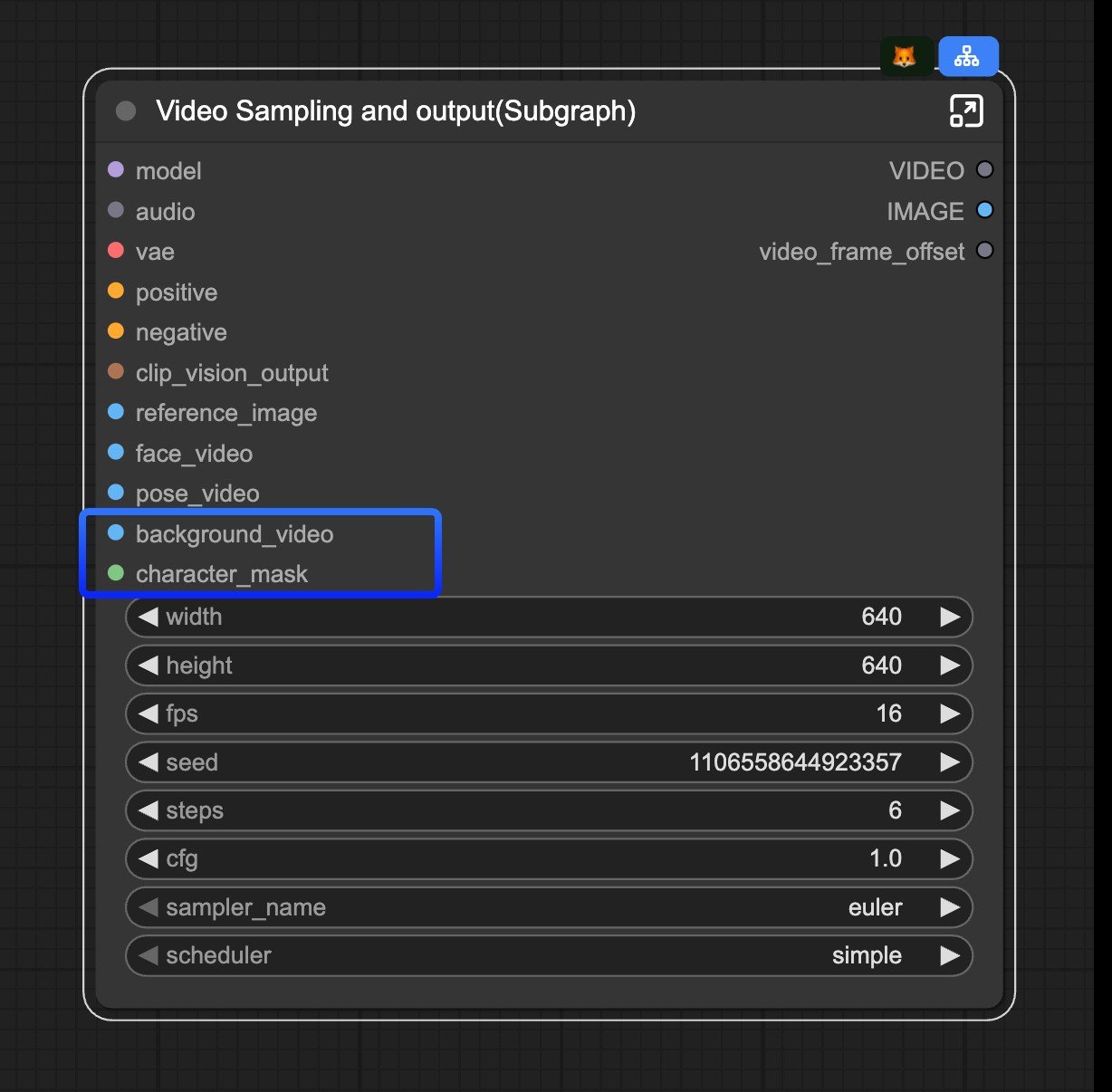 If you want to switch to Move mode, you can disconnect `background_video` and `character_mask` inputs from the `Video Sampling and output(Subgraph)` node.