> ## Documentation Index
> Fetch the complete documentation index at: https://dripart-chore-sync-comfy-api-v2-spec-b886298.mintlify.site/llms.txt
> Use this file to discover all available pages before exploring further.
# Wan2.2 Animate ComfyUI 原生工作流
> 统一的人物动画和替换框架,具有精确的运动和表情复制。
Wan-Animate 是由 WAN 团队开发的一个统一的人物动画和替换框架。
该模型可以根据表演者的视频对任何人物进行动画处理,精确复制表演者的面部表情和动作,生成高度真实的人物视频。
它还可以将视频中的角色替换为动画角色,在保留其表情和动作的同时,复制原始的光线和色调,以实现与环境的无缝集成。
## 模型亮点
* 双模式功能:单一架构支持动画和角色替换功能,可轻松切换操作模式。
* 高级身体运动控制:使用空间对齐的骨架信号来精确复制身体动作。
* 精确的运动和表情:准确重现参考视频中的动作和面部表情。
* 自然的环境集成:将已替换的角色与原始视频环境无缝融合。
* 平滑的长视频生成:迭代生成确保在扩展视频中保持一致的运动和视觉流畅性。
## ComfyOrg Wan2.2 Animate 流式回放
请确保你的 ComfyUI 已经更新。
* [ComfyUI 下载](https://www.comfy.org/download)
* [ComfyUI 更新教程](/zh/installation/update_comfyui)
本指南里的工作流可以在[工作流模板](/zh/interface/features/template)中找到。如果找不到,可能是 ComfyUI 没有更新。
如果加载工作流时有节点缺失,可能原因有:
1. 你用的不是最新版(每夜版)。
2. 启动时有些节点导入失败。
* [Cloud](https://cloud.comfy.org) 会在 ComfyUI 稳定版本发布后更新。
所以,如果你发现本文档中有任何核心节点缺失,可能是因为新核心节点尚未在最新稳定版中发布。请等待下一个稳定版发布。
## 关于 Wan2.2 Animate 工作流
该工作流支持两种模式:Mix(用参考图像中的角色替换视频中的角色)和 Move(使用输入视频中的动作驱动角色动画)。
Wan2.2 Animate:角色动画与替换
统一的角色动画与替换框架,可实现精准的动作和表情复制。
 在 Comfy Cloud 中打开
下载 JSON,或在模板库中搜索 “Wan2.2 Animate”
**输入素材**
将这些文件上传到对应的节点:
`LoadImage` 节点 10 · `video_wan2_2_14B_animate_reference_image.png`
`LoadVideo` 节点 145 · `video_wan2_2_14B_animate_original_video.mp4`
### 2. 模型链接
本指南涉及的全部模型可以在[此处](https://huggingface.co/Comfy-Org/Wan_2.2_ComfyUI_Repackaged/tree/main/split_files)找到。
**Diffusion 模型**
Wan2\_2-Animate-14B\_fp8\_e4m3fn\_scaled\_KJ.safetensors:来自 Kijai 仓库的 Scaled FP8 版本
wan2.2\_animate\_14B\_bf16.safetensors:原始 bf16 模型权重
**CLIP Vision**
clip\_vision\_h.safetensors:CLIP视觉编码器
**LoRAs**
lightx2v\_I2V\_14B\_480p\_cfg\_step\_distill\_rank64\_bf16.safetensors:4 步加速 LoRA
**VAE**
wan\_2.1\_vae.safetensors:用于编码和解码的 Wan2.1 VAE
**文本编码器**
umt5\_xxl\_fp8\_e4m3fn\_scaled.safetensors:Scaled FP8 文本编码器
```
ComfyUI/
├───📂 models/
│ ├───📂 diffusion_models/
│ │ ├─── Wan2_2-Animate-14B_fp8_e4m3fn_scaled_KJ.safetensors
│ │ └─── wan2.2_animate_14B_bf16.safetensors
│ ├───📂 loras/
│ │ └─── lightx2v_I2V_14B_480p_cfg_step_distill_rank64_bf16.safetensors
│ ├───📂 text_encoders/
│ │ └─── umt5_xxl_fp8_e4m3fn_scaled.safetensors
│ ├───📂 clip_visions/
│ │ └─── clip_vision_h.safetensors
│ └───📂 vae/
│ └── wan_2.1_vae.safetensors
```
### 3. 安装自定义节点
下载以下工作流文件并将其拖入 ComfyUI 以加载工作流。如果你已安装 [ComfyUI-Manager](https://github.com/Comfy-Org/ComfyUI-Manager),只需点击 `安装缺失节点` 按钮即可安装缺失的节点。
我们需要安装以下自定义节点:
* [ComfyUI-KJNodes](https://github.com/kijai/ComfyUI-KJNodes)
* [ComfyUI-comfyui\_controlnet\_aux](https://github.com/Fannovel16/comfyui_controlnet_aux)
如果你不知道如何安装自定义节点,请参阅 [如何安装自定义节点](/zh/installation/install_custom_node)
### 4. 工作流说明
Wan2.2 动画有两种模式:混合(Mix)和移动(Move)
* 混合(Mix):使用参考图像替换视频中的角色
* 移动(Move):使用输入视频中的角色动作来驱动参考图像中的角色运动(类似于 Wan2.2 趣味控制)
#### 4.1 混合(Mix)模式
在 Comfy Cloud 中打开
下载 JSON,或在模板库中搜索 “Wan2.2 Animate”
**输入素材**
将这些文件上传到对应的节点:
`LoadImage` 节点 10 · `video_wan2_2_14B_animate_reference_image.png`
`LoadVideo` 节点 145 · `video_wan2_2_14B_animate_original_video.mp4`
### 2. 模型链接
本指南涉及的全部模型可以在[此处](https://huggingface.co/Comfy-Org/Wan_2.2_ComfyUI_Repackaged/tree/main/split_files)找到。
**Diffusion 模型**
Wan2\_2-Animate-14B\_fp8\_e4m3fn\_scaled\_KJ.safetensors:来自 Kijai 仓库的 Scaled FP8 版本
wan2.2\_animate\_14B\_bf16.safetensors:原始 bf16 模型权重
**CLIP Vision**
clip\_vision\_h.safetensors:CLIP视觉编码器
**LoRAs**
lightx2v\_I2V\_14B\_480p\_cfg\_step\_distill\_rank64\_bf16.safetensors:4 步加速 LoRA
**VAE**
wan\_2.1\_vae.safetensors:用于编码和解码的 Wan2.1 VAE
**文本编码器**
umt5\_xxl\_fp8\_e4m3fn\_scaled.safetensors:Scaled FP8 文本编码器
```
ComfyUI/
├───📂 models/
│ ├───📂 diffusion_models/
│ │ ├─── Wan2_2-Animate-14B_fp8_e4m3fn_scaled_KJ.safetensors
│ │ └─── wan2.2_animate_14B_bf16.safetensors
│ ├───📂 loras/
│ │ └─── lightx2v_I2V_14B_480p_cfg_step_distill_rank64_bf16.safetensors
│ ├───📂 text_encoders/
│ │ └─── umt5_xxl_fp8_e4m3fn_scaled.safetensors
│ ├───📂 clip_visions/
│ │ └─── clip_vision_h.safetensors
│ └───📂 vae/
│ └── wan_2.1_vae.safetensors
```
### 3. 安装自定义节点
下载以下工作流文件并将其拖入 ComfyUI 以加载工作流。如果你已安装 [ComfyUI-Manager](https://github.com/Comfy-Org/ComfyUI-Manager),只需点击 `安装缺失节点` 按钮即可安装缺失的节点。
我们需要安装以下自定义节点:
* [ComfyUI-KJNodes](https://github.com/kijai/ComfyUI-KJNodes)
* [ComfyUI-comfyui\_controlnet\_aux](https://github.com/Fannovel16/comfyui_controlnet_aux)
如果你不知道如何安装自定义节点,请参阅 [如何安装自定义节点](/zh/installation/install_custom_node)
### 4. 工作流说明
Wan2.2 动画有两种模式:混合(Mix)和移动(Move)
* 混合(Mix):使用参考图像替换视频中的角色
* 移动(Move):使用输入视频中的角色动作来驱动参考图像中的角色运动(类似于 Wan2.2 趣味控制)
#### 4.1 混合(Mix)模式
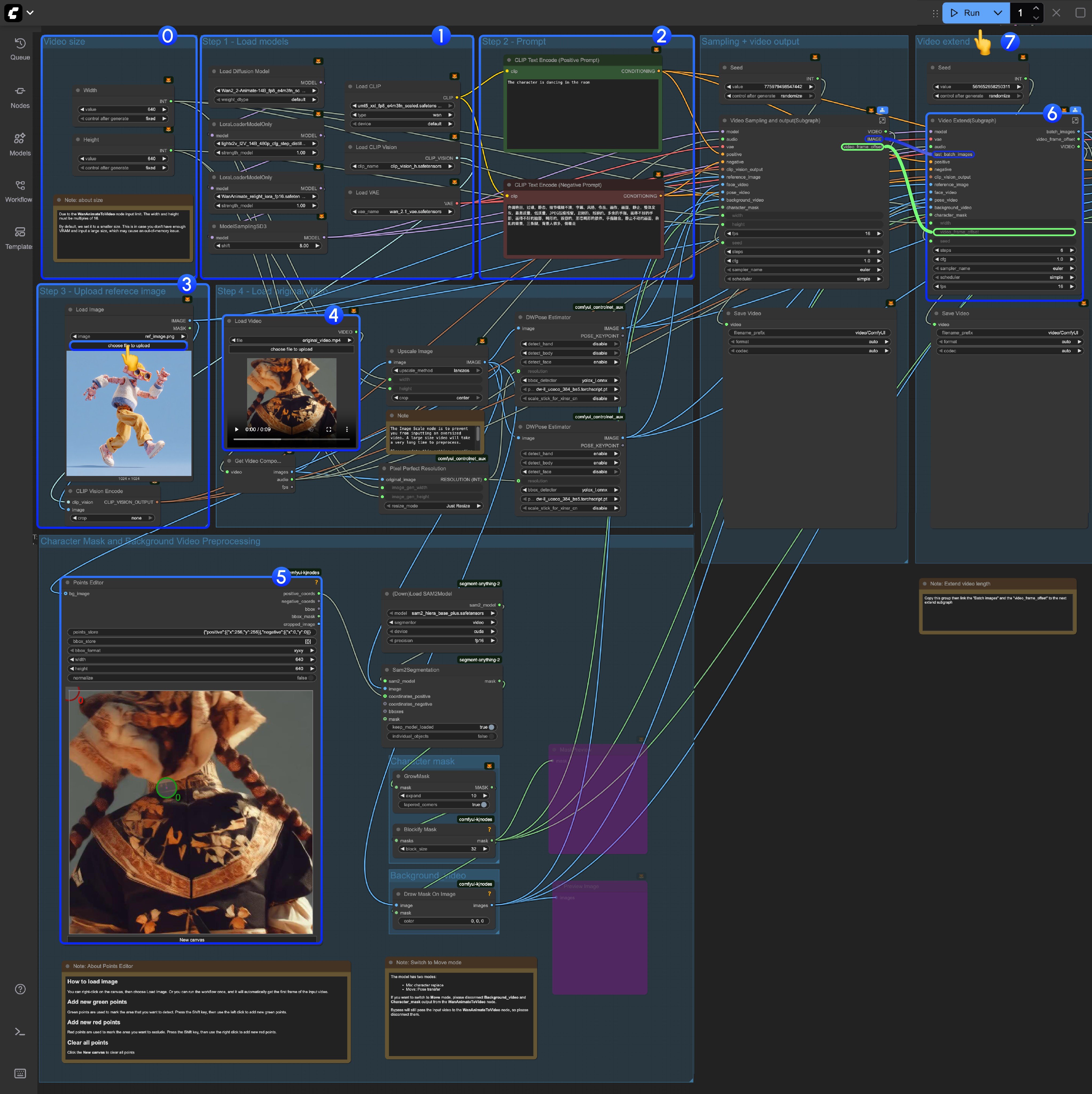 0. 如果你是首次运行此工作流,请使用较小的尺寸进行视频生成,以免 VRAM 不足而无法运行工作流;另外,由于 `Wan动画转视频` 的限制,视频的宽度或高度应为 16 的倍数。
1. 请确保所有模型都已正确加载
2. 如有需要,请更新提示词
3. 上传参考图像,此图像中的角色将成为目标角色
4. 首次使用时,你可以使用我们提供的视频作为输入视频,[comfyui\_controlnet\_aux](https://github.com/Fannovel16/comfyui_controlnet_aux) 中的 **DWPose Estimator** 节点会将输入视频预处理为姿态和面部控制视频
5. `Points Editor` 来自 [KJNodes](https://github.com/kijai/ComfyUI-KJNodes/),默认情况下,此节点不会加载输入视频的第一帧,你需要先运行一次工作流,或手动上传第一帧
* 在 `Points Editor` 节点下方,我们添加了一条关于此节点工作原理以及如何编辑它的说明,请参阅该说明
6. “Video Extend” 组用于扩展输出视频的长度
* 每个 `Video Extend` 将再扩展 77 帧(约 4.8125 秒)
* 如果输入视频不足 5 秒,则可能不需要它
* 如果你想要扩展得更长,则需要多次复制和粘贴,并将上一个 Video Extend 的 `batch_images` 连线到下一个 Video Extend,同时还需要将上一个 Video Extend 的 `video_frame_offset` 连线到下一个 Video Extend
7. 点击 `Run` 按钮,或使用快捷键 `Ctrl(cmd) + Enter` 来执行视频生成
#### 4.2 移动(Move)模式
我们在 Wan2.2 动画工作流中使用了[子图](/zh/interface/features/subgraph),以下是切换到移动(Move)模式的方法:
0. 如果你是首次运行此工作流,请使用较小的尺寸进行视频生成,以免 VRAM 不足而无法运行工作流;另外,由于 `Wan动画转视频` 的限制,视频的宽度或高度应为 16 的倍数。
1. 请确保所有模型都已正确加载
2. 如有需要,请更新提示词
3. 上传参考图像,此图像中的角色将成为目标角色
4. 首次使用时,你可以使用我们提供的视频作为输入视频,[comfyui\_controlnet\_aux](https://github.com/Fannovel16/comfyui_controlnet_aux) 中的 **DWPose Estimator** 节点会将输入视频预处理为姿态和面部控制视频
5. `Points Editor` 来自 [KJNodes](https://github.com/kijai/ComfyUI-KJNodes/),默认情况下,此节点不会加载输入视频的第一帧,你需要先运行一次工作流,或手动上传第一帧
* 在 `Points Editor` 节点下方,我们添加了一条关于此节点工作原理以及如何编辑它的说明,请参阅该说明
6. “Video Extend” 组用于扩展输出视频的长度
* 每个 `Video Extend` 将再扩展 77 帧(约 4.8125 秒)
* 如果输入视频不足 5 秒,则可能不需要它
* 如果你想要扩展得更长,则需要多次复制和粘贴,并将上一个 Video Extend 的 `batch_images` 连线到下一个 Video Extend,同时还需要将上一个 Video Extend 的 `video_frame_offset` 连线到下一个 Video Extend
7. 点击 `Run` 按钮,或使用快捷键 `Ctrl(cmd) + Enter` 来执行视频生成
#### 4.2 移动(Move)模式
我们在 Wan2.2 动画工作流中使用了[子图](/zh/interface/features/subgraph),以下是切换到移动(Move)模式的方法:
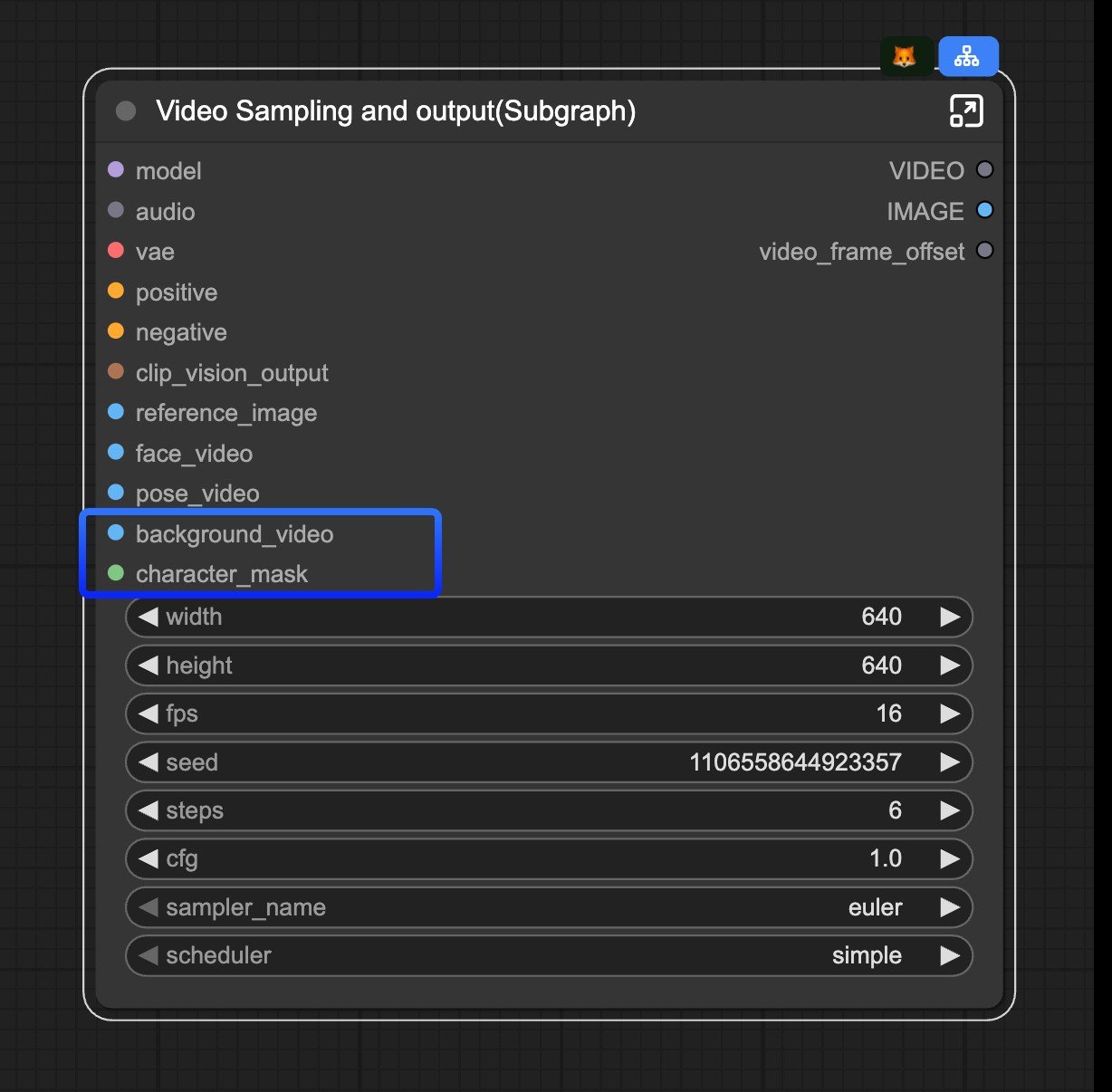 如果你想切换到移动(Move)模式,可以断开 `Video Sampling and output(Subgraph)` 节点上的 `background_video` 和 `character_mask` 输入。