

The Manage Panel
The Manage panel content varies by instance type. The screenshots on this page show a local standalone installation. Cloud and remote instances have fewer tabs and settings. Select Manage on an installation to open the settings panel.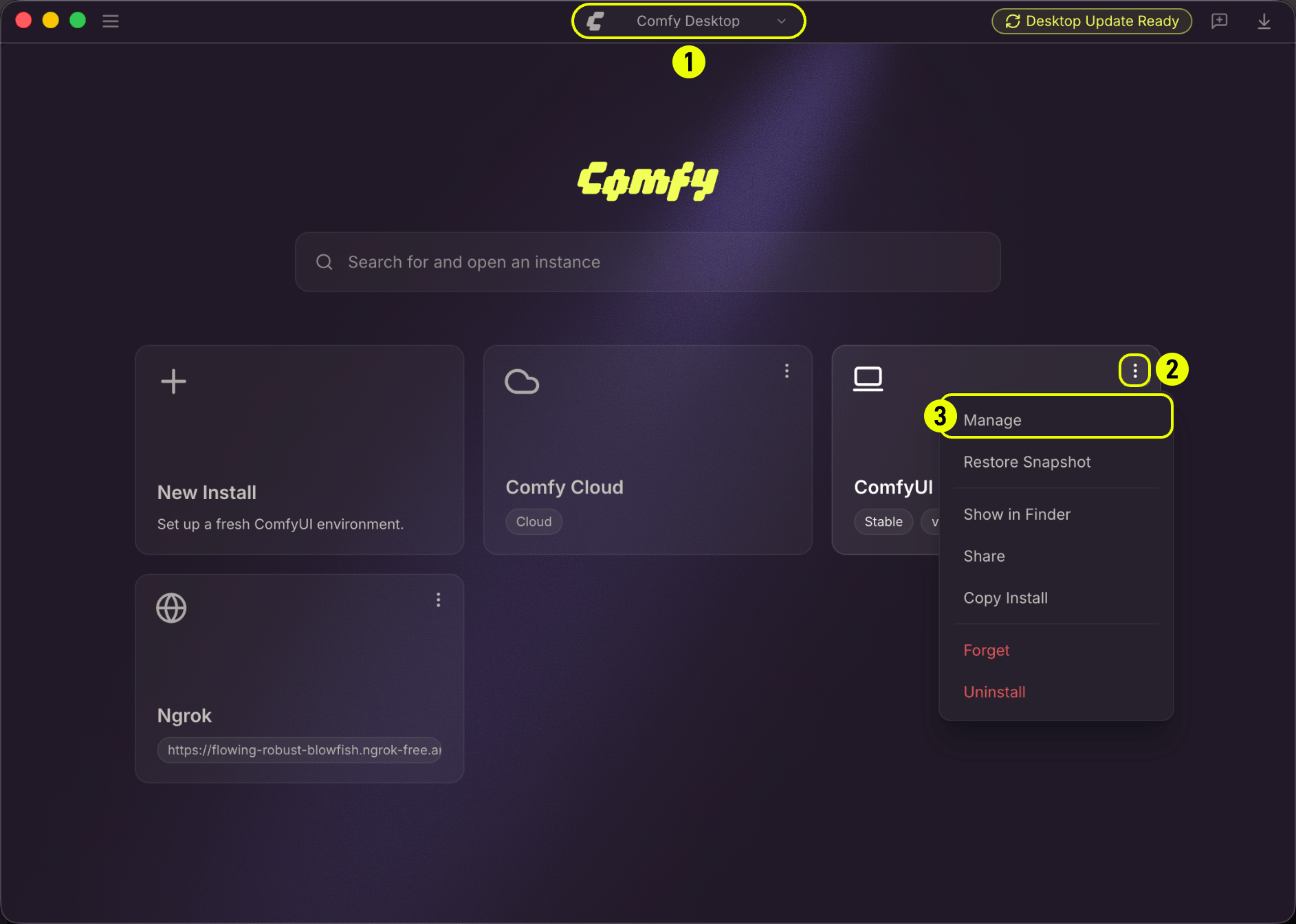
- Open the Chooser view (the home screen showing all your instances)
- Click the ⋮ icon on an instance card
- Select Manage from the context menu
Update Tab
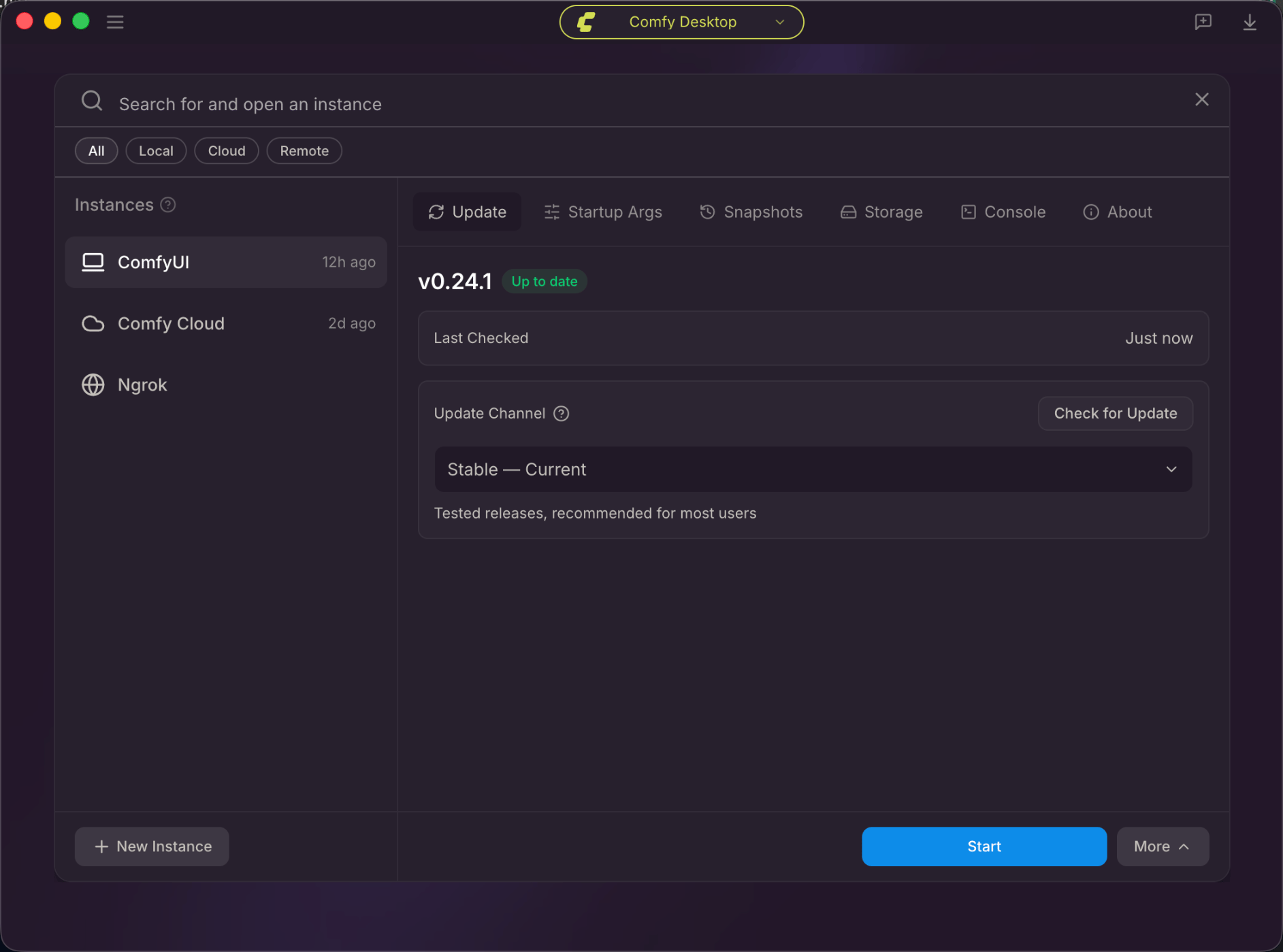
- Version: Shows the current installed version and whether it’s up to date.
- Last checked: Displays when updates were last checked.
- Check for update: Manually check for a new version.
- Update Channel: Choose the update channel from the dropdown:
- Stable: Tested releases, recommended for most users. Default option.
- Latest on GitHub: Newest commits from the master branch.
Startup Args Tab
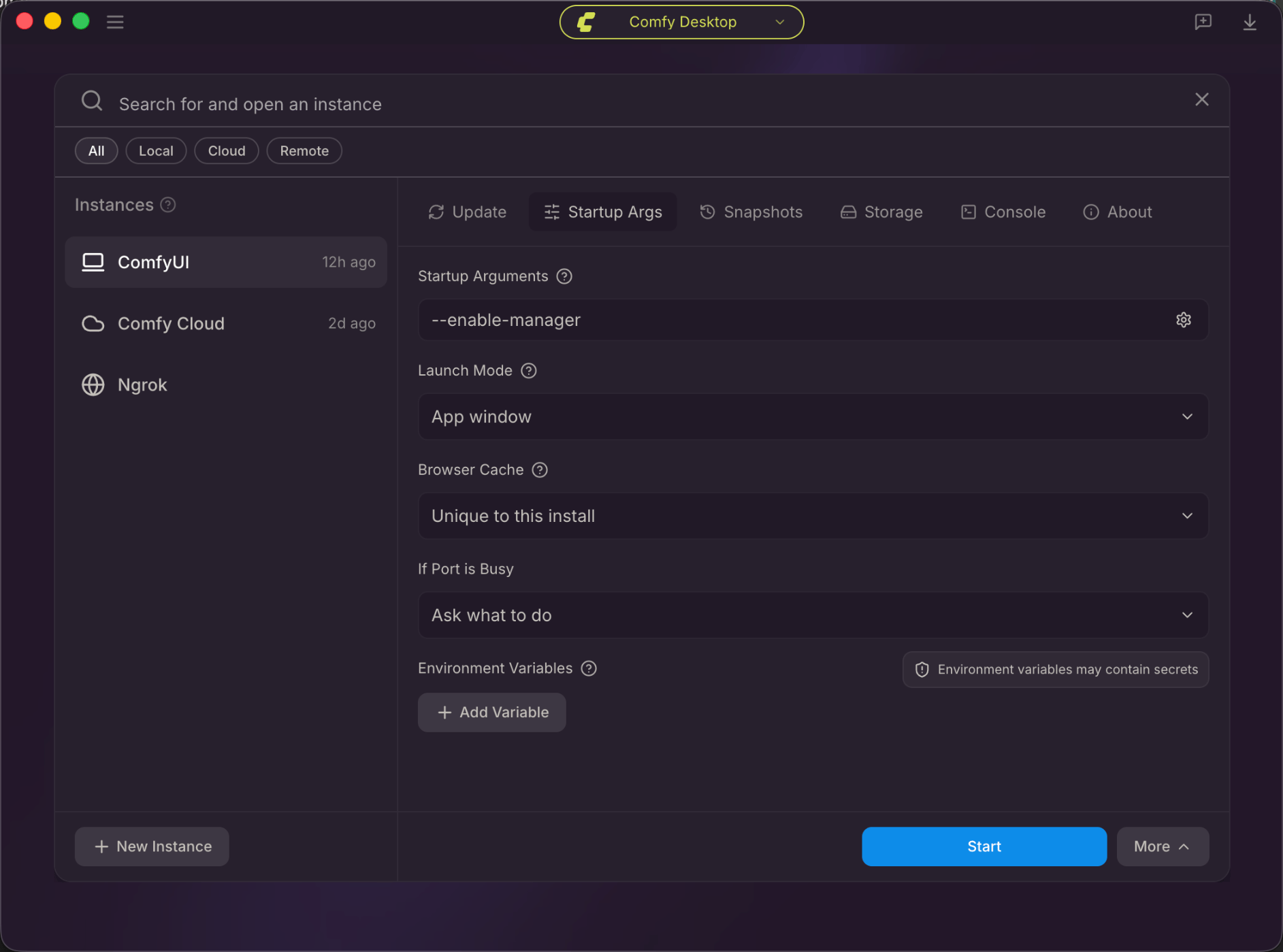
- Startup Arguments: Custom CLI arguments for ComfyUI (e.g.
--listen). Click the gear icon for categorized flags. - Manager Security Level: Controls which node packs ComfyUI-Manager can install for this instance. Applies the next time you launch.
- Strict: Blocks all node pack installs, updates, and uninstalls. Manager is read-only.
- Standard (recommended): Allows registered node packs. Blocks installs from unregistered sources (for example arbitrary git URLs).
- Relaxed: Like Standard, but also allows unregistered-source installs while ComfyUI is only reachable from this machine.
--listenblocks them again. - Permissive: Allows every risk tier. If ComfyUI is exposed with
--listen, installs still require Personal cloud network mode.
- Manager Network Mode: How Manager talks to the node registry.
- Public (default): Uses the public registry.
--listenblocks node pack installs at every security level. - Private: Uses a private node database you configure yourself.
- Offline: No external network. Downloads are unavailable.
- Personal cloud: Treats this machine as a trusted remote box and lifts the
--listeninstall block. The chosen security level still applies. Only use this on a machine you control.
- Public (default): Uses the public registry.
- Launch Mode: App window (embedded) or Console only (no app window; ComfyUI runs as a console process).
- Browser Cache: Unique to this instance or Shared.
- If Port is Busy: Ask what to do, or Use next available port (asks if —port is set).
- Environment Variables: Add custom environment variables with the + Add Variable button.
Startup Flags Reference
See the full list of ComfyUI startup flags available for Startup Arguments.
Snapshots Tab
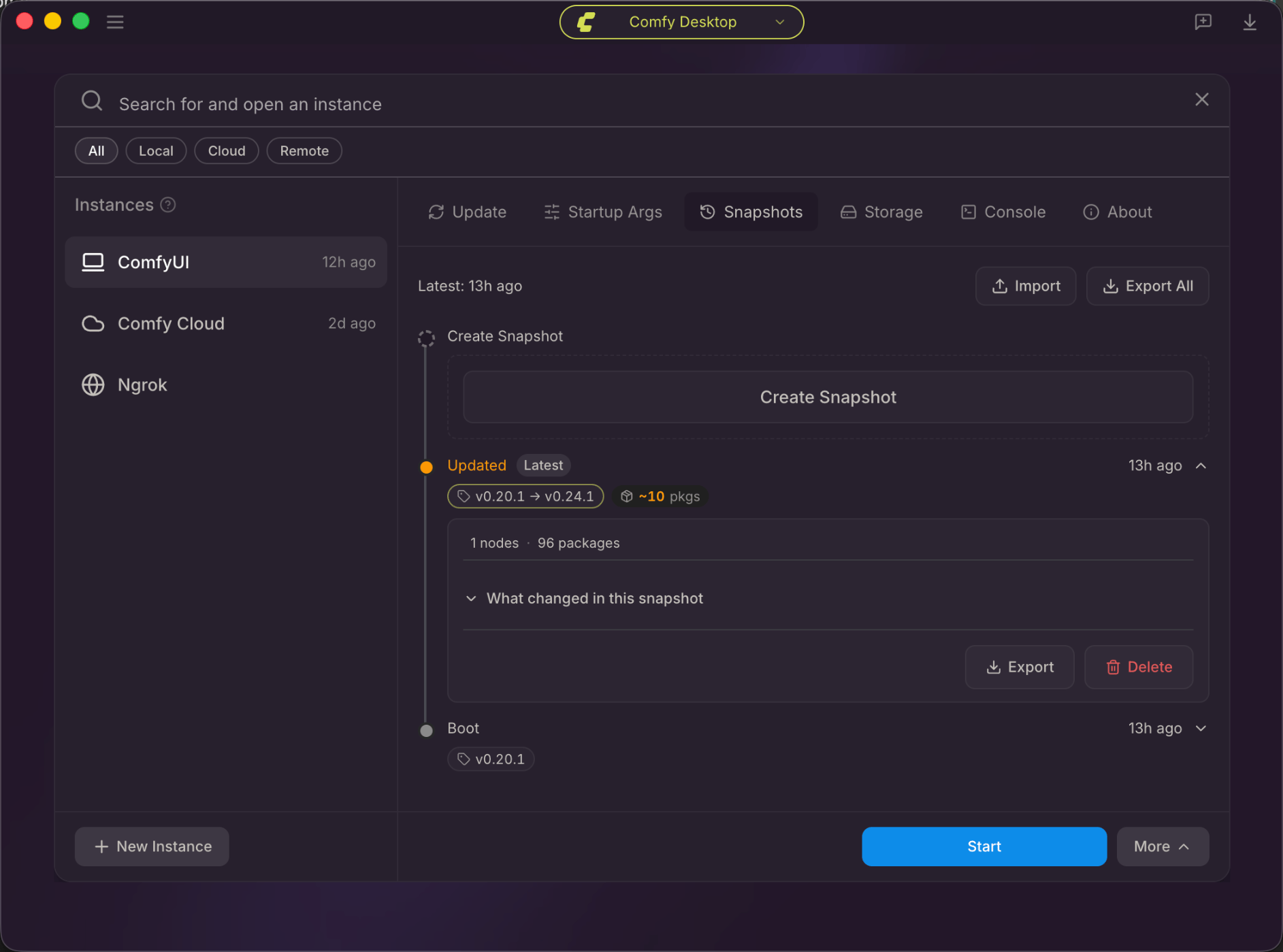
- Timeline: Lists all snapshots chronologically with version changes and stats.
- Latest: Shows when the most recent snapshot was taken.
- Import: Import a snapshot from a file.
- Export All: Export all snapshots as a backup.
- Create Snapshot: Manually create a new snapshot at any time.
- Each snapshot entry shows:
- Version change (e.g.
v0.20.1 → v0.24.1) - Package changes
- Node and package counts
- Export and Delete buttons
- Version change (e.g.
Complete Snapshot Management
Learn about automatic snapshots, comparison, and full snapshot management.
Storage Tab
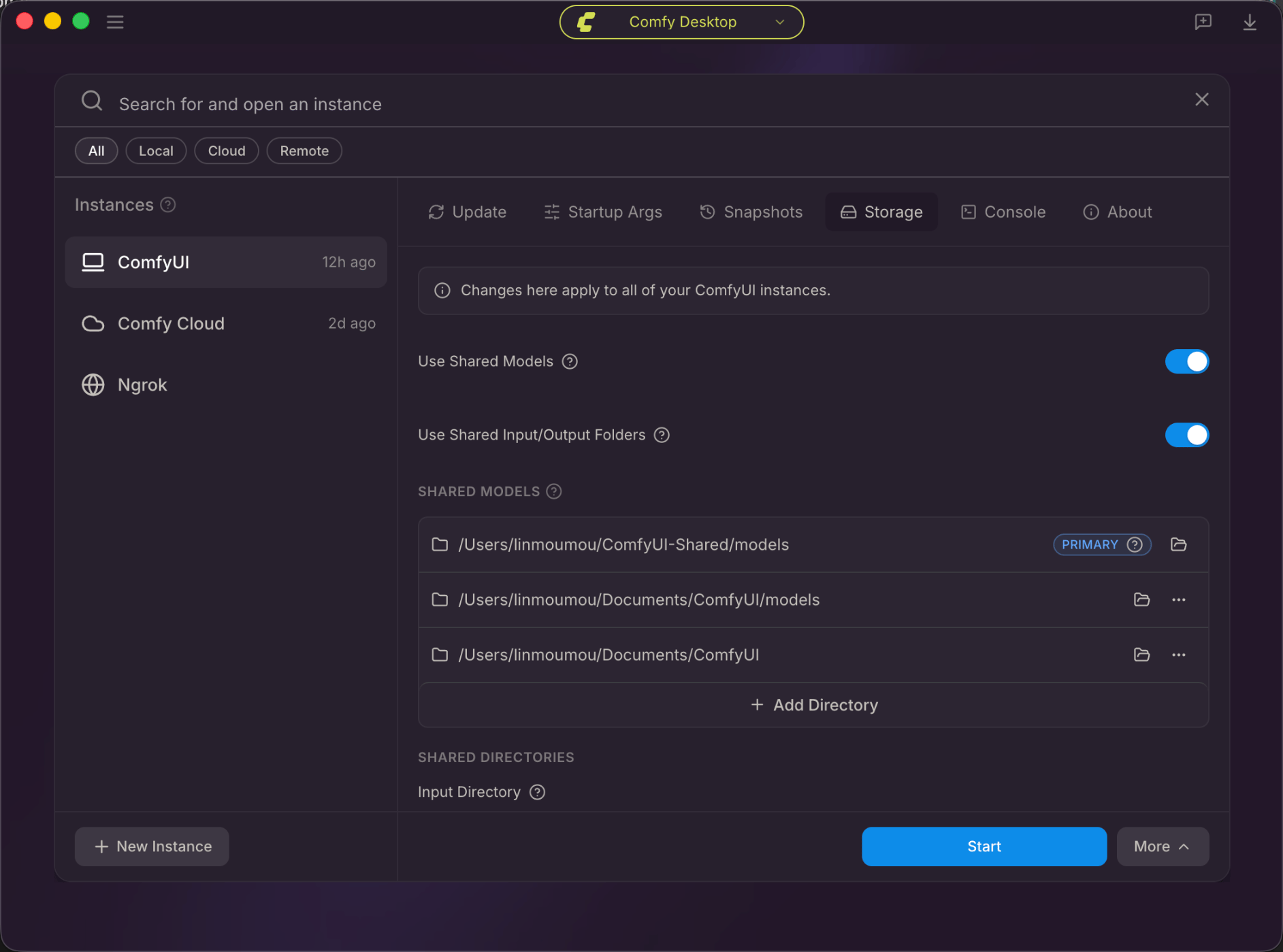
- Include Shared Directories: Toggle whether this instance scans the global shared model directories from Desktop Settings → Storage.
- Use Shared Input Folder: When enabled, this instance reads input files from the global shared input folder. Disable to use this instance’s own input folder.
- Use Shared Output Folder: When enabled, this instance writes generated outputs to the global shared output folder. Disable to use this instance’s own output folder.
- Model Directories: Extra model directories for this instance only, searched in addition to the shared model directories.
- Input Directory / Output Directory: This instance’s own folders when the shared toggles above are off.
Terminal Tab
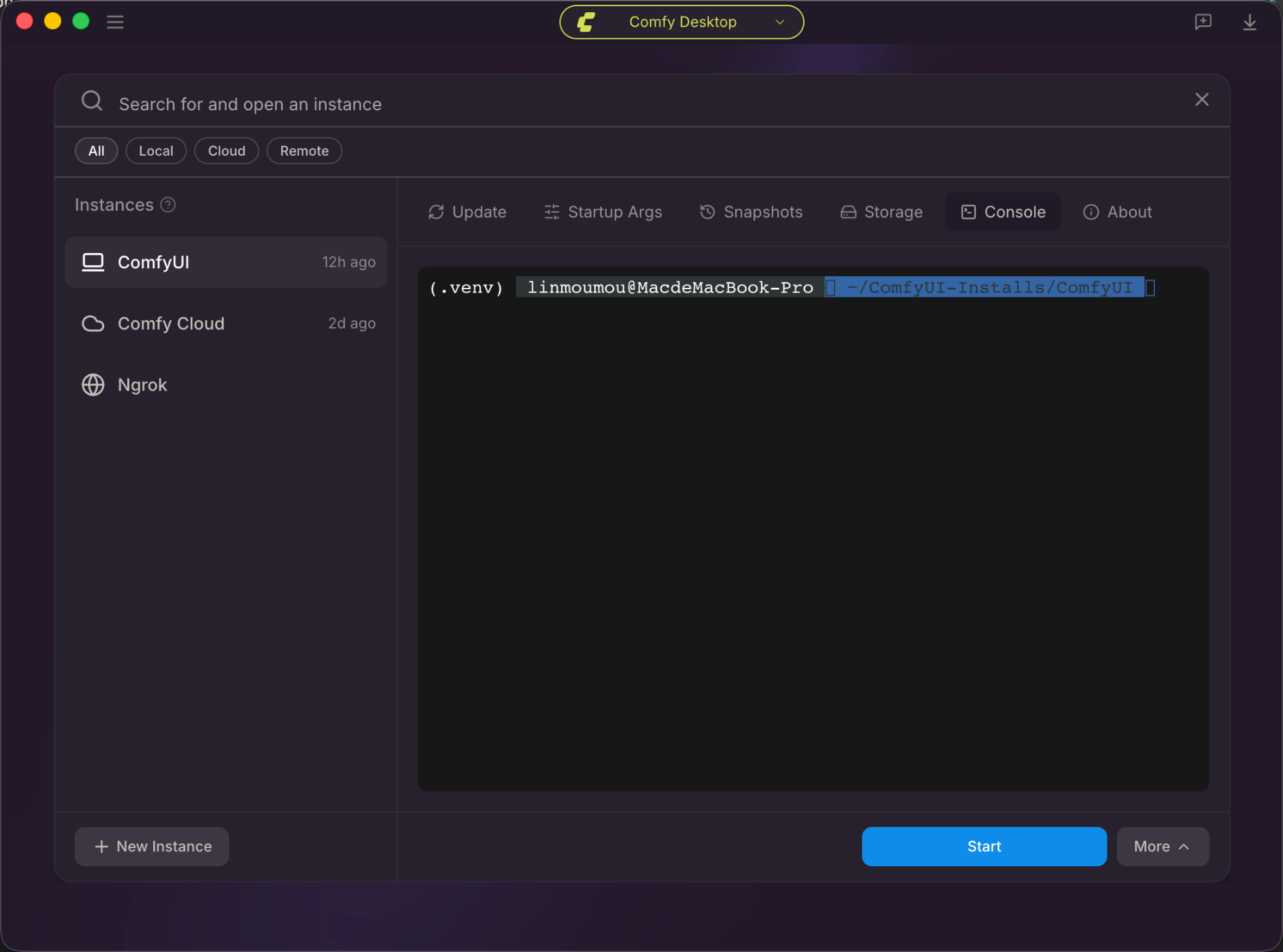
- Use it to inspect startup logs, errors, and Python output.
- Copy, paste, and select-all follow OS shortcuts. Right-click the terminal for the same actions.
About Tab
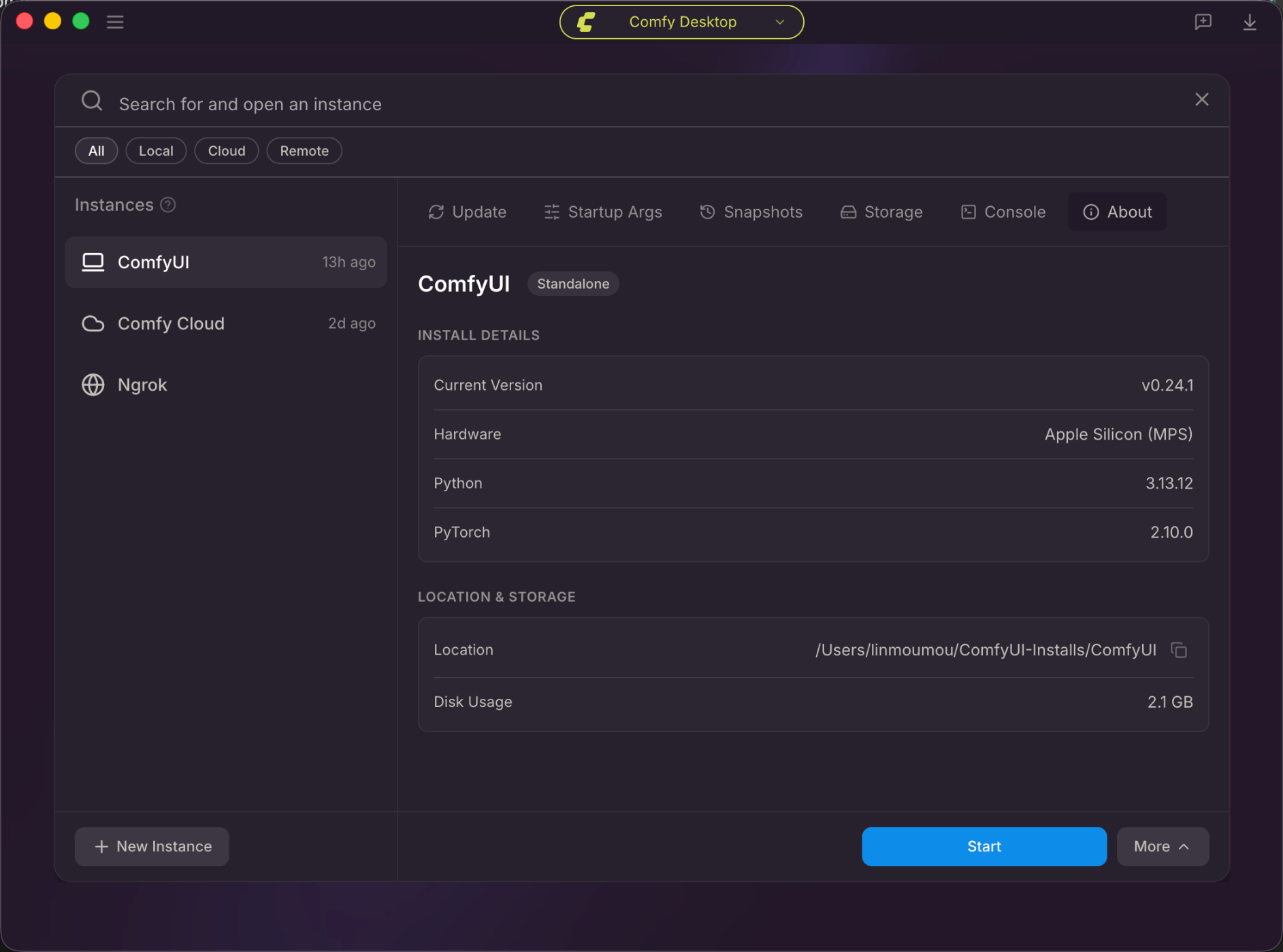
- Current Version: The installed ComfyUI version.
- Hardware: Detected hardware (e.g.
Apple Silicon (MPS)). - Python: Bundled Python version.
- PyTorch: The installed PyTorch build. Change PyTorch switches to an official stack tested with this install type (CUDA, ROCm, Intel XPU, CPU, or Apple MPS). The rest of the environment is kept. Nightly builds are marked unstable.
- Location: The full installation path on disk. Click the copy button to copy it.
- Disk Usage: How much disk space the installation uses.